
The Sell page is where you can list the quantity of each product you have for sale in each market. Here is also where you add new products to sell and edit the details of your existing products. Initially the All Markets tab is selected, showing all products you have for sale in all your markets. The “Show unlisted products” slider can be used to look at only listed products, which may be useful if you have a long product list that changes throughout the seasons.
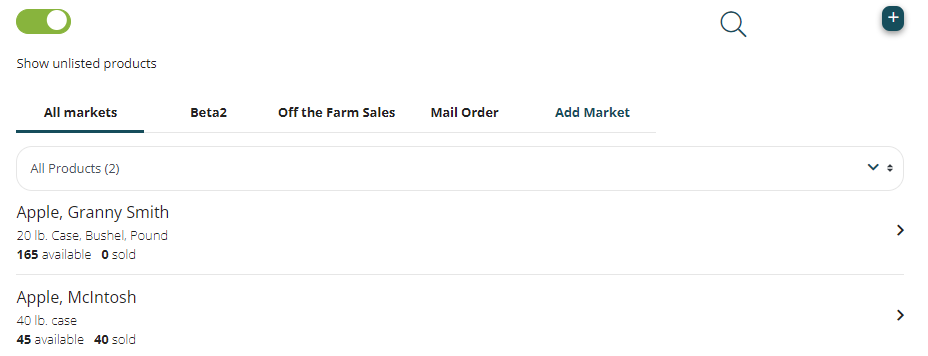
The > symbol on a product line opens the availability and price details of the product. The quantity available is listed in terms of the product base unit, so in the case of Type A products keep in mind that the availability of each selling unit will be the quantity of available base units divided by the selling unit multiplier.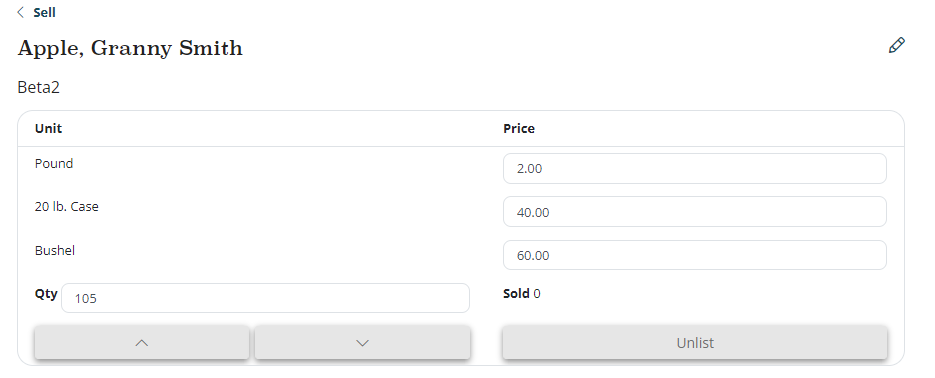 The pencil icon at the top right of the product availability page takes you to the product details page for that product. There you can edit all of the product details including its image and description, the markets and subperiods it is sold in, the selling unit information, and the harvest details.
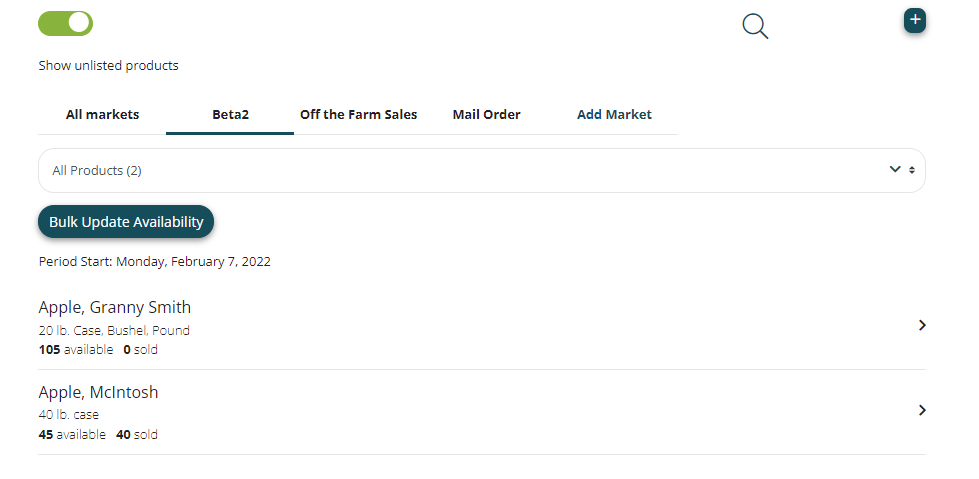
On the Sell page you can look at each individual market's list of products by selecting the market name at the top of the page. On the individual market tabs you can use the Bulk Update Availability button to edit the availability of all listed items on one page.
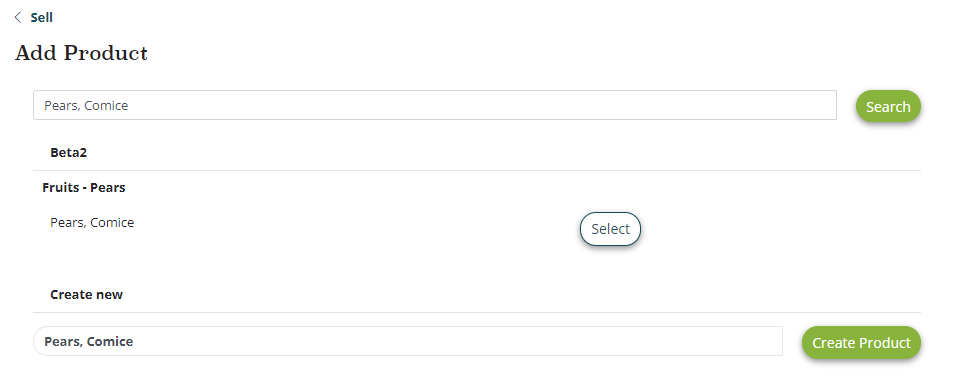
From the Sell page you can add new items to your market(s) using the plus button at the upper right. When you search for the product name the page will display a list of matching products from the market(s) you participate in. You can select one of those options to add to your product list, or at the bottom of the list you can use the Create Product button to create a new product.
Comments
0 comments
Please sign in to leave a comment.