
Local Food Connect sets up your first market for you automatically (see Creating Your Account). You can set up additional markets on the Manage Markets page. To get there click the person icon on the top right and select Settings→Manage Markets, or use the Add Market link on the Sell page.
The Manage Markets page displays any LFM producer accounts that your login email is connected to. These may be other LFM markets you sell with, or they may be other producer accounts you manage in your main LFM market.
Managing multiple LFM markets for the same producer
If you sell under the same producer name in several LFM markets you can manage your product availability and generate consolidated harvest and packing documents for all of your markets together in Connect. Click "Add Market" to begin mapping the new market's products to the products you already have setup.
Once the market is added you will confirm the Harvest Days for your new market. Connect will initially set the Harvest Day to be the same as the Aggregation Day (the day you drop-off or deliver products) for each distribution day. If you harvest/pack on a different days, you can select a different day of the week in the Harvest Day menu.
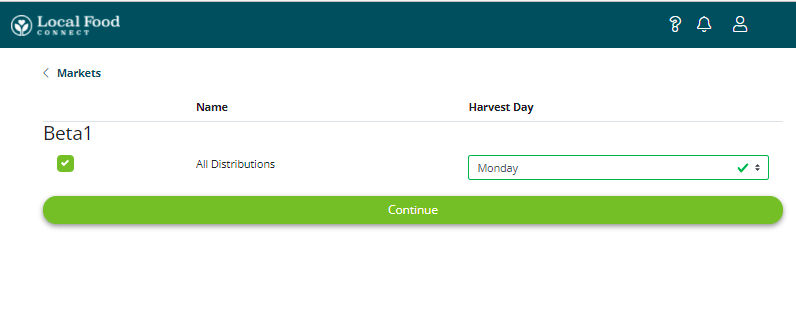
Once you've confirmed your Harvest Days next you will import your products from the new market and map them to the products you already have setup in Connect.
On the left side of the Add/Import products page are the products in the new market that are going to be imported. Check the import box next to the products you'd like to manage through LFM . We recommend selecting all of them.
Once the products are selected you'll need to confirm the mapping of the new products to the products already setup in Connect. If the products have the same name in both markets, they'll map automatically.
For products that don't have the same name in both markets you can either manually select an existing Connect product to map the new product to or create a new product in Connect for the new markets product.
If the product from the new market is the same as one that you already have in Connect, just with a slightly different name, map the new product to the existing product.
If the product from the new market doesn't exist in your Connect account yet, choose Create a new product from the bottom of the list.
Click the "Import Products" button at the bottom of the page to complete the product import process. Once the products are imported you'll see your newly added market in your Dashboard and you'll be able to manage its products in the Sell page.
If your producer account has a different name in your new market
If the you sell under different producer names in different markets but using the same product list, you can manage those markets through the same Connect profile.
When you add the new market you can choose to map the new producer account to your existing Connect profile.
After choosing to map the new market producer to your existing one you will set your Harvest Days and import products just like if you were adding a market with a producer under the same name.
Managing a separate producer in connect
If you'd like to add a market or a producer with entirely different products from the producer you already have in Connect you can choose to create a new producer in that you'll manage separately.
As with other new market additions, you will set your Harvest Days and import your products. Then you'll be brought to the Dashboard page of the new producer you have added. To switch between producers you want to manage, click on the person icon in the top right and use the Switch To drop down button.
Comments
0 comments
Article is closed for comments.