
Adding Products From the Global Product List
Most likely, your Market Manager has created products for you to add to your Product List. You'll just need to find the Products that you sell in the Global Product list and add them to the list of products that you sell.
To add products from the global product database follow these steps:
- Navigate to your "Products" page in the left side menu
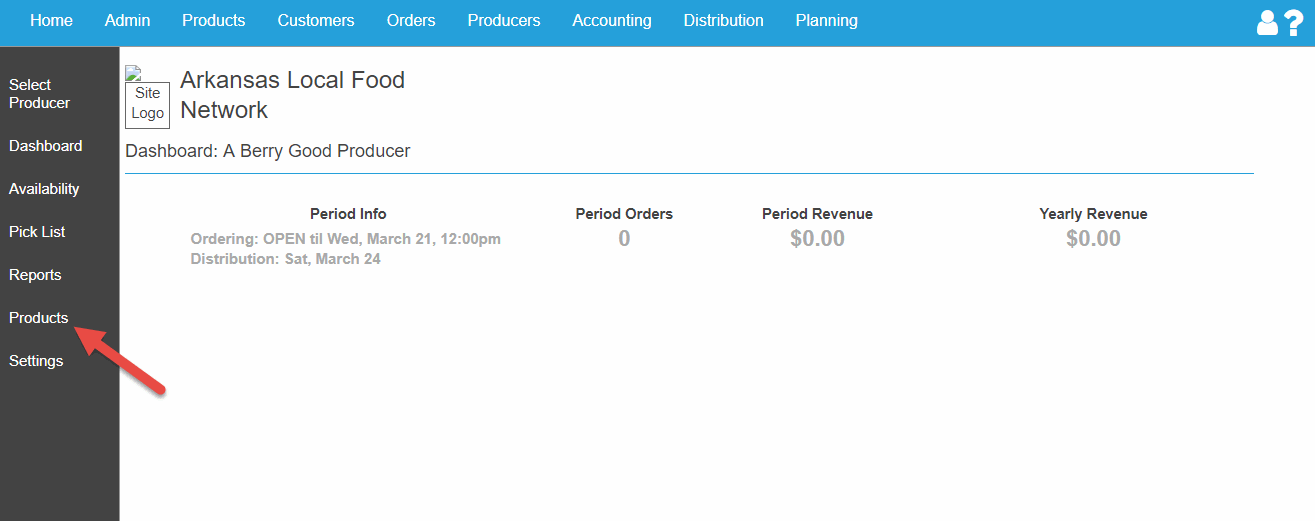
- In the products page click on the "Add Products To Sell" button

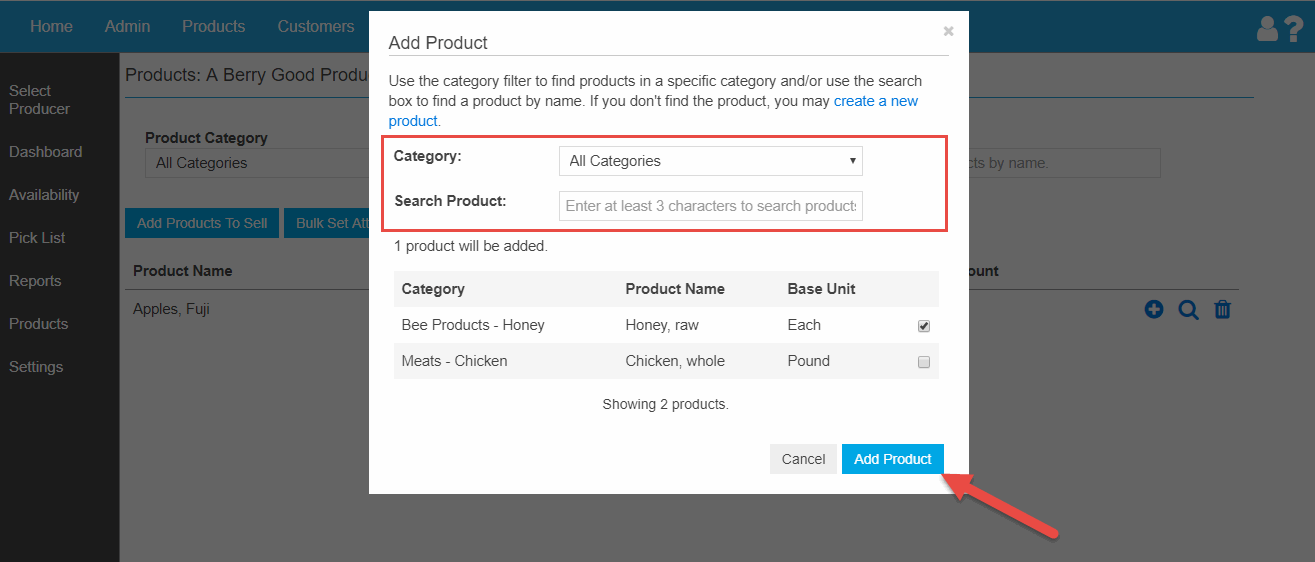
- In the Add Products modal that pops out you can use the Product Category drop-down and the Product Name search field to find the products you sell. Once you find the products, check the box to the right of the product's base unit. Then, click "Add Product" to add the Product to the list of Products you sell
- These products are now able to be edited with your own pricing method, base unit, selling unit, product image and selling units.
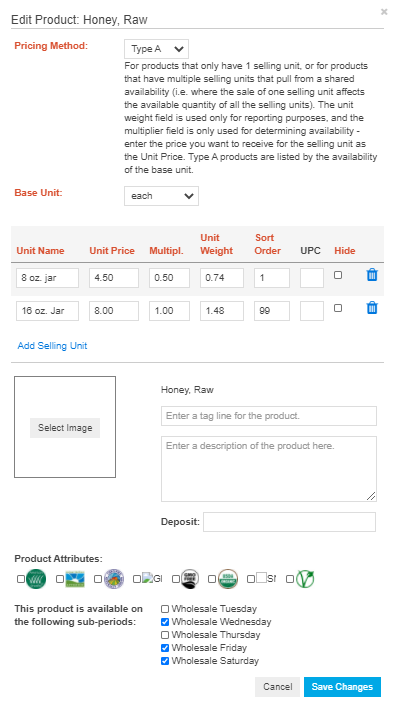
Pricing Method: There are three Pricing Methods:
- Type A - For products that have multiple selling units that pull from a shared availability (of the base unit).
- Type B - For Products that are sold by their exact weight. An estimated weight is entered for each selling unit, which can be edited after the product is sold.
- Type C - For products that have multiple selling units, where each selling unit has it's own availability and price. (Default)
For more information on choosing the right Pricing Method for your product, click here.
Base Unit: Describes the selling units of a product. Selling units that describe specific quantities (like "Head," "1 lb. Jar" or "12 ct. Case") can be described using the base unit "Each." Selling units that describe weights (like "25 lb. Case," "1 lb. Package" or "8oz. Bag") can be described using the base unit "Pounds." When creating a product you need to specify a base unit. Availability of Type A priced products is determined by their base unit. Products that need to be sold for their exact weight (using Type B pricing) need to have "Pounds" as their base unit.
Selling Unit: Describes how and what the customer will purchase when they purchase a product. A Lettuce product might have a "Head" selling unit, and a "12 ct. Case" selling unit. A Ground Beef product might have a "1 lb. Package" and a "5 lb. Package" selling unit. Selling units can also be used to offer a variety of colors, flavors, etc. When creating a product you'll need to setup at least 1 selling unit (you can set up as many as you need).
Multiplier: Used when pricing and listing Type A products. Multipliers describe how much of the base unit is constituted by the selling unit. If you were to setting up a Red Potato product with a base unit of Pounds that had three selling units (5 lb. Bag, 20 lb. Case, 50 lb. Case) the multipliers for each selling unit would be as follows:
- 5 lb. Bag = Multiplier of 5
- 20 lb. Case = Multiplier of 20
- 50 lb. Case = Multiplier of 50
This would allow you to list the total number of pounds of Red Potatoes you had available, and the system would use the multipliers to determine how many of each Selling Unit was available. As selling units are sold, the multipliers are used to determine how much of the base unit should be removed from availability.
Unit Weight: For Type B products the unit weight is an average that is multiplied by the unit price to give the product price displayed on the storefront. This weight can later be edited by the producer or an admin to reflect the exact weight and price of the product. For Type A and C products the weight is optional and purely informational for admins. If A and C type product units are given weights, those weights will be included in order item reports and can be used to find the total weight sold of a product.
Product Images: For more information on adding a product image, click here.
Deposit: An additional amount of money that will be collected for each unit of the product sold. All product units have the same deposit amount. Taxes and markups do not apply to deposits. Deposits show up as separate amounts in Revenue reports and the Deposits Collected by Producer report.
Attributes: Attributes set up by the market administrator can be applied to the product.
Sub-periods: For markets that use sub-periods, the choose which of the subperiods the producer participates in to make this product available for.
Creating a New Product
If you don't see a product you sell in the Global Product list, you can create a new product. This product will need to be approved and categorized by a Market Manager before you list it for sale. Remember, when creating a Product, you need to select a Base Unit, and create at least one Selling Unit.
No audio in video below
To create a new product follow these steps:
- In the "Add Products To Sell" modal, click the "Create a New Product" link
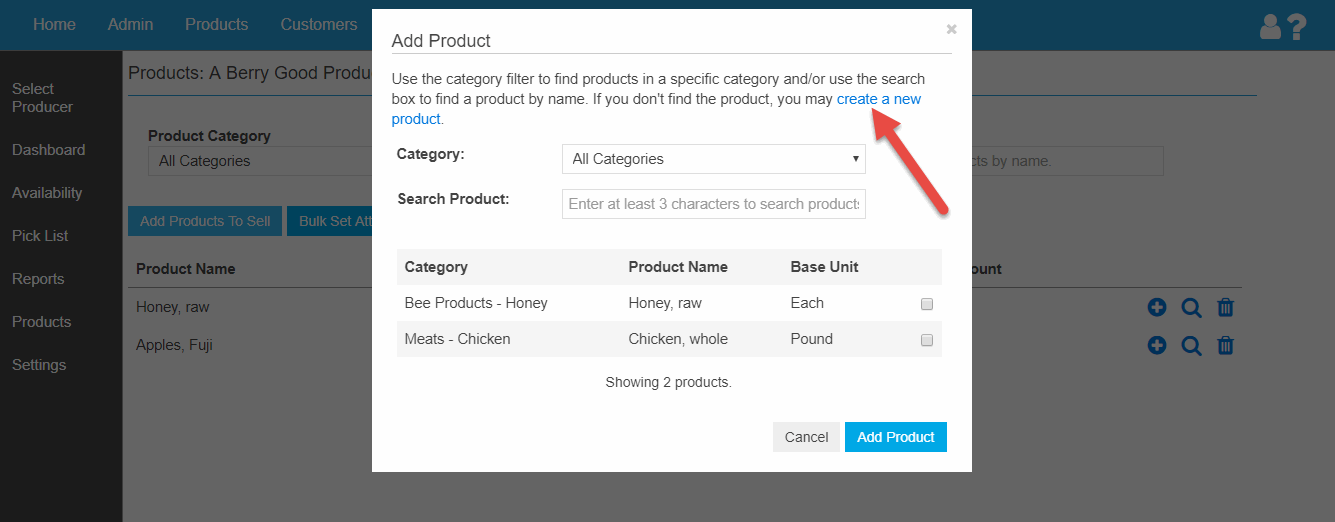
- In the new product modal, you'll need to setup your Product Name, Pricing Method, Base Unit and Selling Units (see above for more information on these). Once these items are in place click "Create New Product" to create the product.
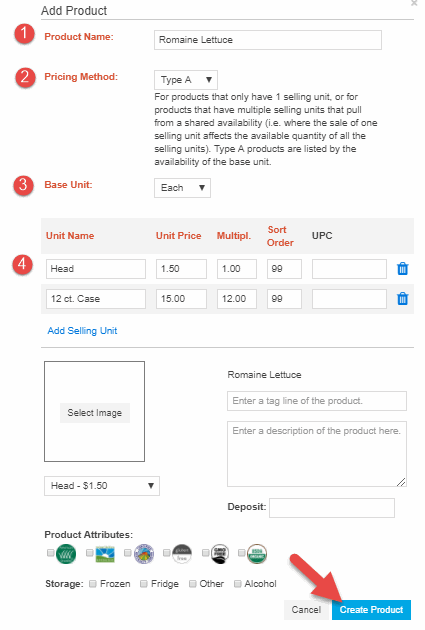
Products that you create yourself will need to be approved by a market manager before they can appear on the storefront.
Comments
0 comments
Article is closed for comments.